User guide

Poker Calculator User Guide

Use this guide to learn the table view, the card picker, the calculation results, saved hands, mobile controls, stud-specific controls, dead cards, and the account features that become available when you register or upgrade.

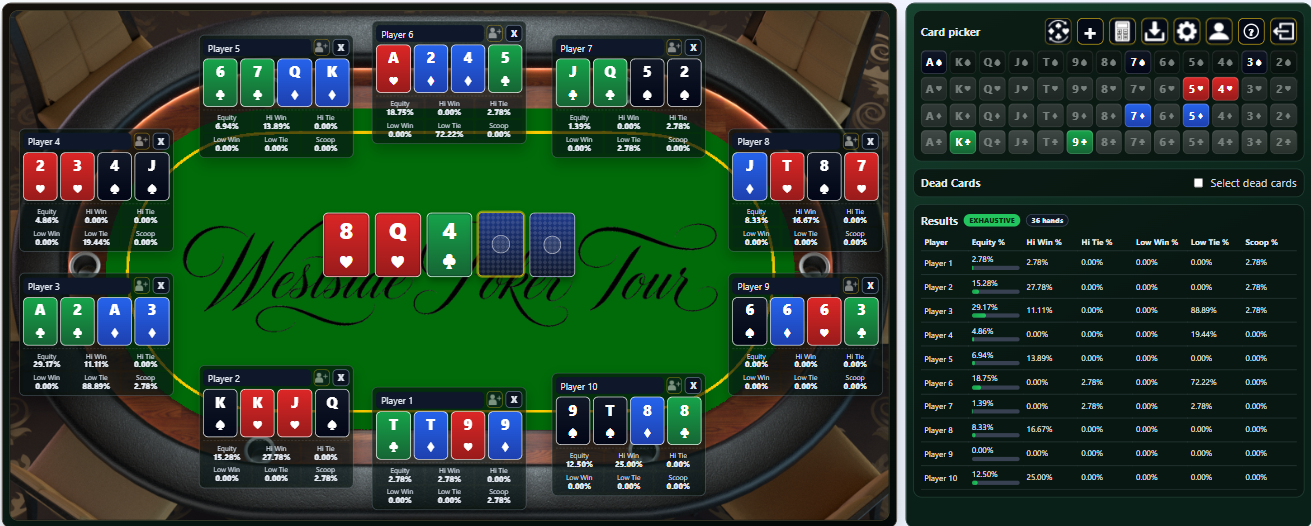
Omaha Hi/Lo calculator desktop table view with ten players

Start with the table view

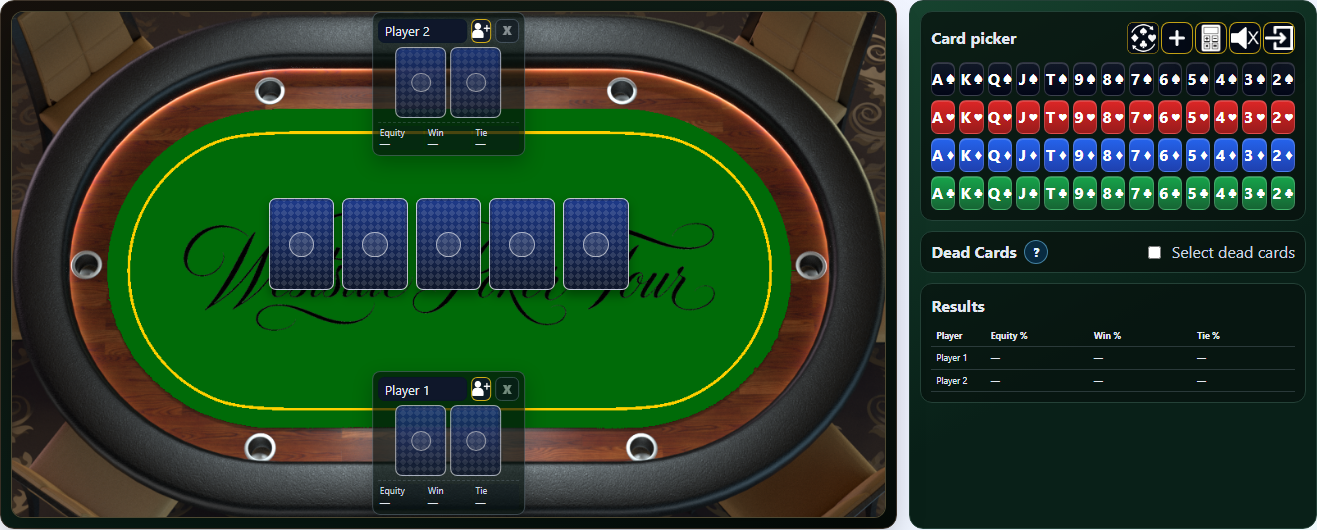
The table view is the main calculator workspace. Player seats are arranged around the table, shared community cards appear in the middle for games that use a board, and the right-side or lower panels hold the card picker, dead cards, results, and saved hands.

  • Use the table to see each player's known cards and current odds in one place.
  • Use the card picker to assign cards to selected player, board, or dead-card slots.
  • Use the results panel to compare equity, win percentage, tie percentage, and split-pot outcomes.
  • On small screens, the same workflow stacks vertically so the table remains readable.
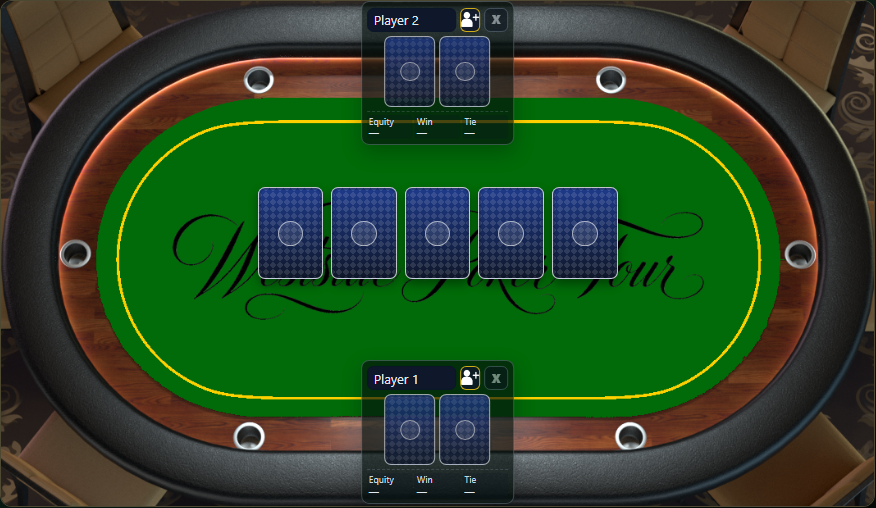
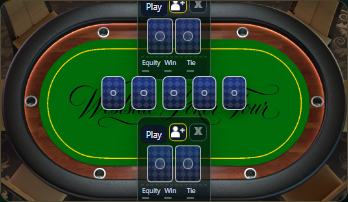
Desktop table view with Player 1 and Player 2

Choose the poker game

Select the change-game button to choose the variant you want to study. The calculator updates the number of private cards, whether a shared board is used, whether low hands are possible, and which result columns are shown.

  • Hold'em uses two private cards and up to five community cards.
  • Omaha and Omaha Hi/Lo use four private cards, with exactly two private cards and exactly three board cards used for each made hand.
  • Five-card and six-card Omaha variants add more private cards, which makes hand reading harder and calculations more useful.
  • Stud games use each player's own up cards and down cards instead of a shared board.
  • Razz is a stud-style low-only game, so the lowest five-card hand wins.
  • For more information about available game variants, visit the game guides page.
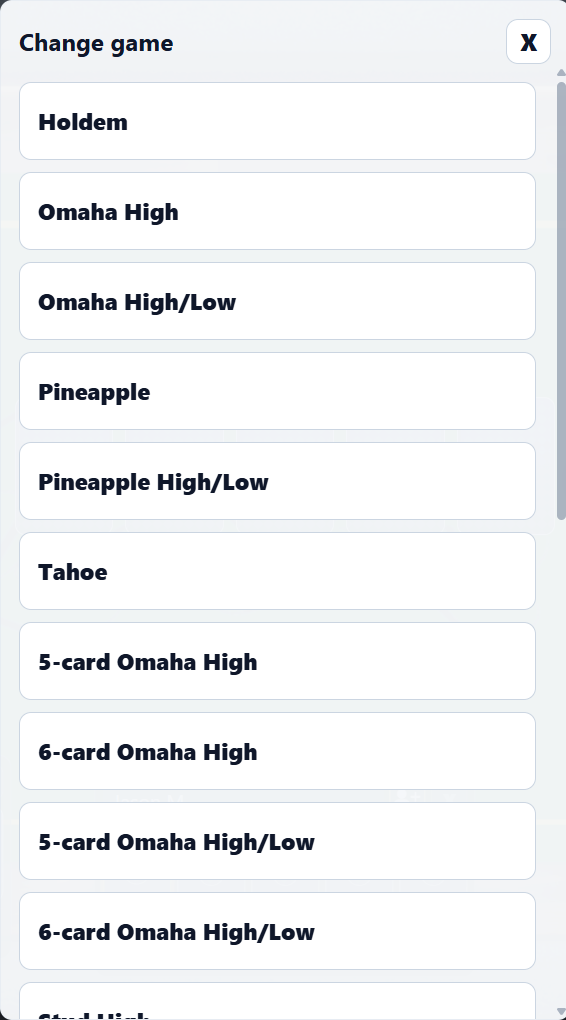
Change game menu with supported poker variants

Enter and remove player cards

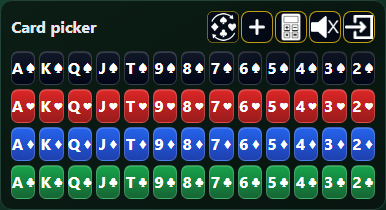
Click or tap an empty card slot in a player's hand, then choose the card from the card picker. Click a filled card slot to remove that card. The calculator prevents the same known card from being used twice.

  • Known cards are shown by rank and suit, such as A♠ or T♥.
  • Red suits are hearts and diamonds; black suits are spades and clubs.
  • For community-card games, player cards are private cards that only that player can use.
  • For stud games, down cards are private cards and up cards are visible exposed cards.
  • Removing a card immediately makes it available again in the picker.
Card picker with available and unavailable playing cards

Add board cards

In Hold'em, Omaha, Pineapple, Tahoe, Big O, Big Easy, and related board games, the middle of the table contains the shared community cards. Add the flop, turn, and river as known cards become available, or leave future streets blank to calculate possible runouts.

  • The flop is the first three community cards.
  • The turn is the fourth community card.
  • The river is the fifth community card.
  • Blank board slots mean the calculator should consider unknown future cards.
  • If the board is complete, the result describes the exact current showdown outcome.
Mobile table view with board cards

Use unknown cards in stud games

Stud games are dealt in rounds with each player receiving a mix of hidden down cards and visible up cards. When you know a player has a hidden card but do not know what it is, use the unknown-card button so the calculator can account for that private card without treating it as a specific known card.

  • Seven Card Stud starts each player with two down cards and one up card.
  • More up cards are dealt on later streets, and the final card is usually a down card.
  • Use known up cards when exposed cards are visible.
  • Use unknown down cards for private cards you know exist but cannot see.
  • Adding unknown down cards helps the calculator model the deal more accurately than leaving those card slots empty.
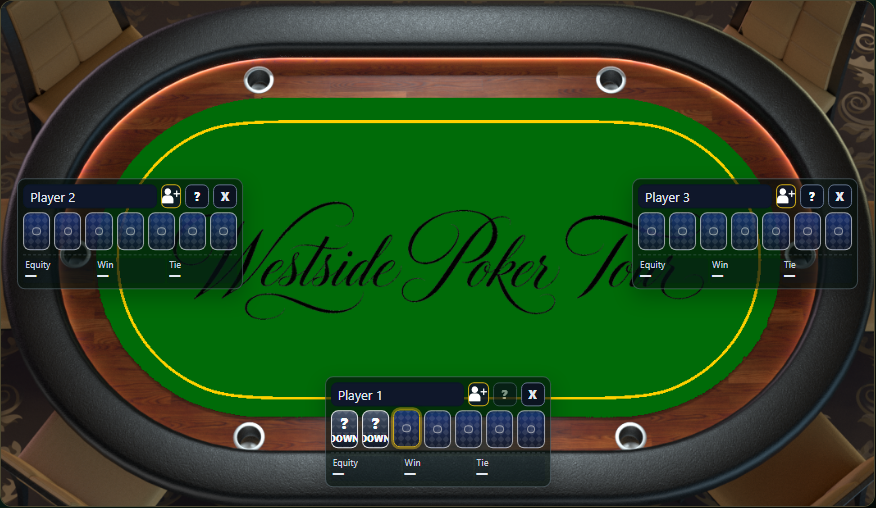
Stud table controls showing unknown-card and add-player buttons

Add and remove players

Add player buttonRemove player button

Every supported game variant lets you adjust the number of players in the hand. Use the add-player button on a seat to add another player, or use the remove-player button on a player seat to remove that player from the current calculation.

  • Add players when you want to study a larger field or reconstruct a real hand with more opponents.
  • Remove a player when you want to study a smaller remaining field.
  • Removing a player also removes that player's known cards from the scenario.
  • After changing player count, recalculate to refresh the equity results.

Use dead cards

Dead cards are cards that are known to be unavailable but are not part of any active player's hand or the board. A folded player's exposed card, a flashed card, or a burn card can be entered as a dead card when you know it should not appear in future runouts.

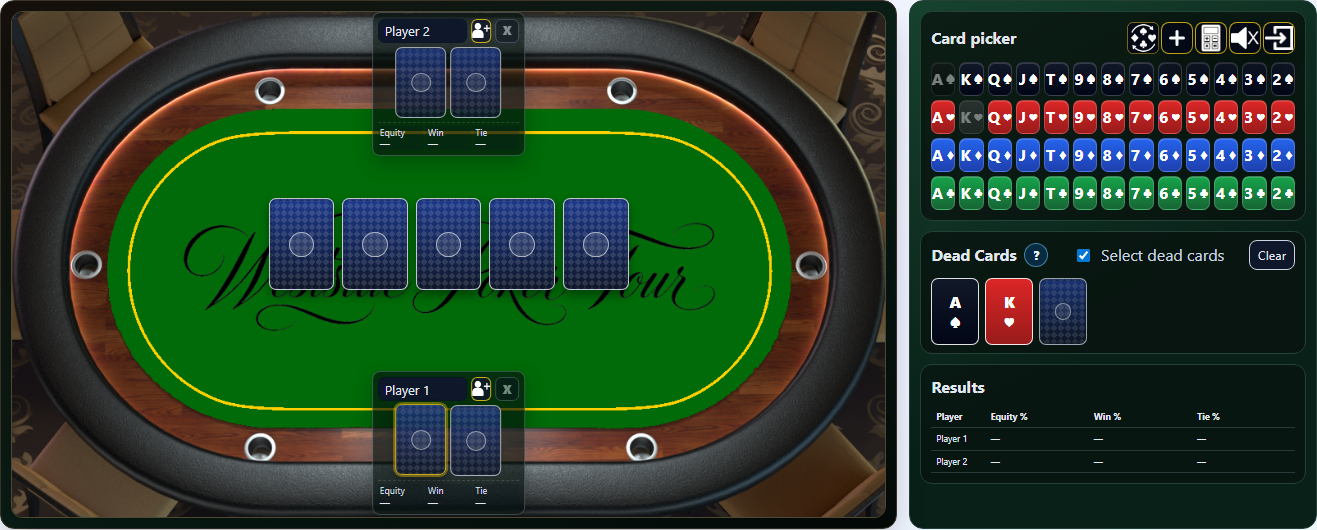
  • Turn on Select dead cards, then choose cards from the picker.
  • Dead cards are removed from the remaining deck for the calculation.
  • Dead cards can change drawing odds because they remove possible outs.
  • Use dead cards only when the card is truly known; guessing dead cards will make the scenario less accurate.
Dead cards panel with selected dead cards

Interpret the results

The results panel shows how often each player is expected to win or tie from the current cards. For split-pot games, it separates high-hand results, low-hand results, and scoop percentage so you can see whether a hand is winning one half of the pot or both halves.

  • Equity is the player's overall share of the pot over the calculated outcomes.
  • Win percentage is how often the player wins the high-only pot in high-only games.
  • Tie percentage is how often the player ties for the high-only result.
  • Hi Win and Hi Tie describe the high half of a split-pot game.
  • Low Win and Low Tie describe the low half when a qualifying low is possible.
  • Scoop percentage is how often a player wins the whole pot in a split-pot game.
  • Exhaustive means the calculator evaluated every remaining outcome it could enumerate; randomized means it sampled many possible outcomes for larger scenarios.
  • If the app marks a result as stale, recalculate after your latest card or setting change.
Results panel with equity, win, tie, and split-pot columns

Save and reload hands

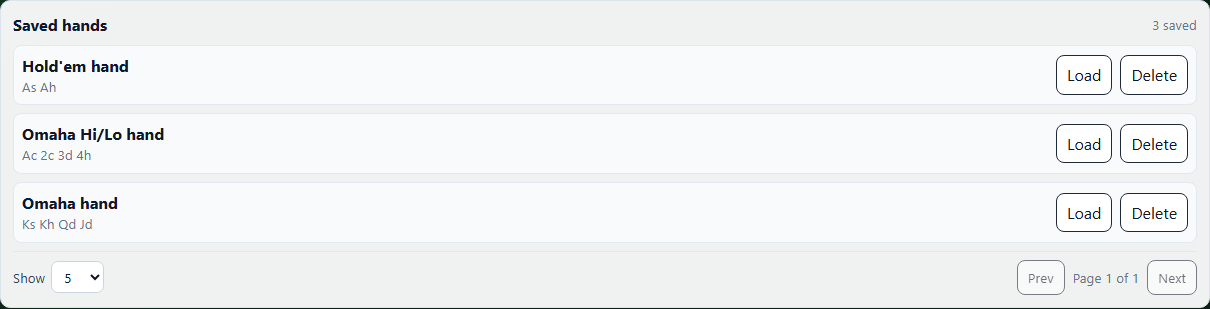
Signed-in users with persistence access can save calculated hands, load prior hands, and delete saved hands when they are no longer needed. Saved hands are useful for reviewing session spots, building study examples, or returning to a complicated mixed-game calculation later.

  • Run a calculation first, then use Save hand to store the current setup.
  • Saved hands include the selected game, player cards, board cards, dead cards, and the calculation request.
  • Use Load to restore a saved hand into the table view.
  • Use Delete to remove a saved hand from your account.
  • Anonymous visitors and unverified accounts are prompted to sign in or verify before saved-hand persistence is available.
Saved hands panel with Load and Delete buttons

Use the mobile layout

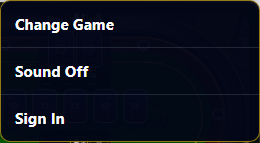
On mobile, the main actions move into a compact toolbar. New Hand and Recalculate remain visible, and the Menu button opens secondary actions such as changing games, toggling sound, saving hands, settings, profile, support, and sign-in or sign-out when those actions are available for your account.

  • Use portrait mode for quick hand entry and review.
  • Use landscape mode when a game has many players or many private cards.
  • The table, card picker, dead cards, results, and saved hands stack vertically.
  • Account actions only appear when your account can use them.
Mobile toolbar with New Hand, Recalculate, and Menu buttonsMobile menu with calculator actions

Button reference

These are the main controls you will see in the desktop toolbar, mobile menu, and stud player seats.

Change game button

Change game

Opens the game picker so you can switch between Hold'em, Omaha, Hi/Lo games, Stud, Razz, Pineapple, Tahoe, Big O, Big Easy, and other supported variants.

New hand button

New Hand

Clears the current cards and starts a fresh calculation setup for the currently selected game.

Recalculate button

Recalculate

Runs the calculator again after you change cards, dead cards, settings, or player count.

Sound button

Sound

Turns calculator interface sounds on or off.

Save hand button

Save hand

Saves the current calculated hand for signed-in users with persistence access.

Calculation settings button

Calculation settings

Opens settings such as automatic calculation behavior and calculation preferences when those settings are available.

Profile button

Profile

Opens account details, default game settings, billing information, advanced-token status, promotions, and plan controls.

Sign in button

Sign in

Opens the sign-in flow. Registering enables account features such as saved hands and faster calculations.

Sign out button

Sign out

Signs the current account out of the calculator.

Add player button

Add player

Adds another player seat to the current hand in any supported game variant.

Unknown down-card button

Unknown down card

Adds a hidden private card in stud games when you know the player has a down card but do not know its rank or suit.

Remove player button

Remove player

Removes a player from the current hand in any supported game variant.

Support button

Support

Opens the support and feedback form for signed-in users.

Mobile menu button

Menu

On mobile, opens actions such as changing games, toggling sound, saving a hand, opening settings, viewing your profile, requesting support, and signing in or out.

Account features and capabilities

You can try the calculator without an account, but registering and upgrading unlocks features that make regular study easier.

Anonymous visitor

Anonymous visitors can use the calculator for core study, including the unlimited free games. This is a good way to try the table workflow before creating an account.

  • Use the calculator without signing in.
  • Study Hold'em, Omaha, and Omaha Hi/Lo without advanced-token limits.
  • Use a lower calculation thread cap than registered users.
  • Cannot save hands or account preferences.

Unverified registered user

An unverified account can sign in, but email verification is required before full registered-user features are available.

  • Sign in and manage basic account access.
  • Verify email to unlock persistence and daily advanced-calculation tokens.
  • Hold'em, Omaha, and Omaha Hi/Lo remain unlimited while verification is pending.

Verified free user

A verified free account is the best baseline experience for regular study because it adds persistence and faster calculation access.

  • Save and reload hands.
  • Save profile and default-game preferences.
  • Use faster calculation settings than anonymous visitors.
  • Receive daily advanced-calculation tokens for games such as Stud, Pineapple, Big O, Big Easy, Razz, and other advanced variants.

Pro user

Pro access is built for larger study sessions, more complex games, and players who want fewer limits while working through advanced variants.

  • Unlimited advanced calculations.
  • The fastest calculation tier.
  • More room for randomized calculations to run additional trials in complex spots.
  • Saved hands, profile settings, and billing or plan controls.

Need the calculator now?

Open calculator